Every email you send or receive carries dozens of hidden headers — fields that describe where the message came from, every server it passed through, what authentication checks ran, and what the receiver decided to do with it. They’re invisible by default because most people don’t need them. But when something goes wrong — a message ended up in spam, a sender claims they sent something you never received, an admin needs to trace a phishing attempt — headers are the only source of truth.
This article shows you how to find the raw headers in Gmail, Outlook, and Apple Mail, then walks through what each of the important headers actually means. It assumes no prior knowledge: if you’ve never opened a header before, you’ll be able to read one by the end.
Why headers matter
Headers are the metadata of email. They’re not added by the sender (well, some are) — most are added by the mail servers that handle the message along the way. Reading them is forensic work: you’re reconstructing what happened to a message from the trail of stamps each server left behind.
The questions headers can answer include:
- Where did this message actually come from? (Not just what the From line says.)
- Did it pass SPF, DKIM, and DMARC?
- How long did it sit at each mail server in transit?
- Which server marked it as spam, and why?
- Was the From line forged?
How to view raw headers
The first step in every header investigation is getting the raw headers — not the cleaned-up summary your mail client shows. Each client buries this option somewhere different.
Gmail (web)
- Open the message.
- Click the three-dot menu (top-right of the message, next to Reply).
- Choose Show original.
- A new tab opens with the full message source. The headers are everything above the first blank line. Click “Copy to clipboard” to grab them.
Outlook (Microsoft 365 web)
- Open the message.
- Click the three-dot menu (top-right of the message).
- Hover View, then choose View message source.
- A pop-up shows the full source. Copy what you need.
Outlook (desktop, classic)
- Open the message in its own window (double-click it).
- Go to File → Properties.
- The headers are in the Internet headers box at the bottom.
Apple Mail
- Open the message.
- Go to View → Message → All Headers (or press ⌥⌘U).
- The full header block appears in the message view.
Mobile clients
Most mobile clients don’t expose raw headers directly. The easiest path is to forward the message to yourself as an attachment (where supported) or open it on a desktop to investigate. iOS Mail can show headers via View → Message → All Headers if you’ve enabled it in settings, but it’s clumsy on a phone.
The headers that actually matter
A raw header block has a lot of fields. Most of them are noise — internal IDs, content-type definitions, MIME boilerplate. The fields that tell you something useful, roughly in order of importance:
From, To, Subject
The visible ones. From is what the sender claimed — easy to forge, can’t be trusted on its own. To is the recipient. Subject is the subject line. Nothing surprising here, but worth being explicit that the From line is just a label. Authentication headers below tell you whether the message actually came from the domain it claims to be from.
Return-Path
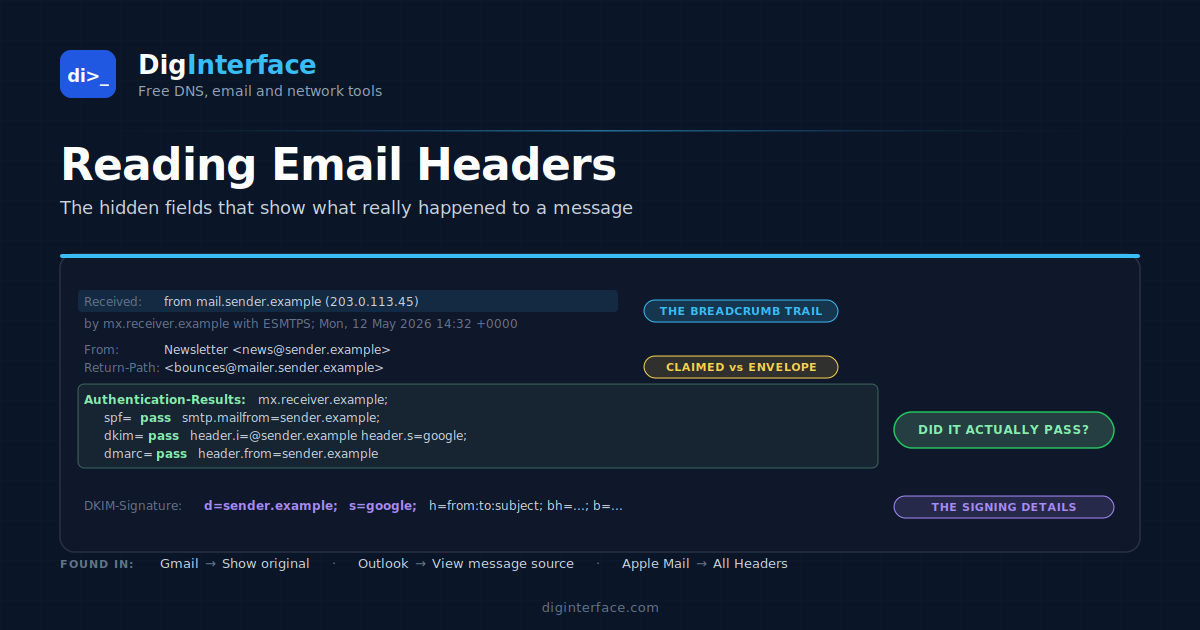
The envelope sender — where bounces go. Often different from the visible From, especially for marketing mail (which sends from bounces@mailer.example.com while showing news@brand.example.com in the From line). SPF is checked against this domain, not the From.
Received
The breadcrumb trail. Every mail server that handled the message adds a Received header at the top of the message. They’re in reverse chronological order — the topmost Received is the most recent (the receiver), the bottommost is the original sending server.
A typical entry:
Received: from mail.sender.example (mail.sender.example [203.0.113.45])
  by mx.receiver.example (Postfix) with ESMTPS id 4F2D3
  for <user@receiver.example>; Mon, 12 May 2026 14:32:18 +0000 (UTC)
Reading this:
- from — the sending server’s hostname and IP, as seen by the receiver
- by — the receiving server’s hostname
- with — the protocol (ESMTPS = SMTP with TLS)
- for — the envelope recipient
- timestamp — when this hop happened
If a message looks suspicious, the from IP on the bottom Received line is who really sent it, regardless of what the From field claims.
Authentication-Results
The header that tells you whether the message passed SPF, DKIM, and DMARC. Added by the receiving server. A typical example:
Authentication-Results: mx.receiver.example;
  spf=pass smtp.mailfrom=sender.example;
  dkim=pass header.i=@sender.example header.s=google;
  dmarc=pass action=none header.from=sender.example
Each result is pass, fail, neutral, softfail, none, permerror, or temperror. A message can have multiple dkim= entries if it carries multiple signatures. The combined view is what the receiver bases delivery decisions on.
This is the single most useful header for diagnosing deliverability problems. If a legitimate message landed in spam, this is where you find out which authentication check failed.
DKIM-Signature
If the message was DKIM-signed, this header carries the signature itself. It looks like:
DKIM-Signature: v=1; a=rsa-sha256; c=relaxed/relaxed;
  d=sender.example; s=google;
  h=from:to:subject:date:message-id;
  bh=...; b=...
The fields:
- d= — the signing domain
- s= — the selector (the receiver looks up the public key at s._domainkey.d)
- h= — which headers were included in the signature
- bh= — body hash
- b= — signature value
For DMARC alignment, d= needs to match (or be the organisational domain of) the visible From domain.
Received-SPF
Some receivers add an extra Received-SPF header alongside Authentication-Results, giving the SPF check result in its own line. Redundant if Authentication-Results is present, but useful when it isn’t.
Message-ID
A globally unique ID assigned by the originating server. Useful when filing support tickets (“can you look up message ID <abc123@sender.example>?”) because it cuts through ambiguity. Don’t expect it to be machine-readable beyond being a unique string.
X- headers
Anything starting with X- is non-standard — a header added by a specific service, with meaning specific to that service. Common ones:
X-Spam-Status/X-Spam-Score— added by SpamAssassin and similar filters. Score above some threshold = spam.X-Originating-IP— sometimes added by webmail providers to show the IP the user submitted from.X-Mailer— what mail client sent the message (informational, often useful for diagnosing weird formatting issues).X-Forwarded-For— set by some mail forwarders.
X- headers are non-authoritative — anyone can add them, including the sender. Don’t trust them for security decisions.
A worked diagnostic: “this message went to spam, why?”
You receive a complaint that a legitimate message landed in the recipient’s spam folder. Steps to investigate from the headers:
-
Open
Authentication-Results. Did SPF, DKIM, and DMARC all pass? - If DMARC failed → look at SPF and DKIM individually. Whichever failed (or both) is the start of the trail. - If everything passed → SPF/DKIM/DMARC isn’t the cause. Move to step 2. -
Open the
Receivedchain. Does it match what you’d expect? If the message took an unexpected route — through a server you don’t recognise — that’s worth investigating. Particularly look for: - Long delays between hops (timestamps far apart) - Servers in unexpected geographic regions - Servers that don’t match your sending infrastructure -
Open
X-Spam-Status(if present). Some filters expose their scoring directly. If you seeX-Spam-Status: Yes, score=8.2, you know spam scoring contributed, and the score breakdown sometimes follows. -
Look at content. Headers can’t help here, but if everything authenticated, the issue is usually content reputation: aggressive keywords, large image-to-text ratio, links to flagged domains, or sender reputation history that headers don’t show.
What headers don’t tell you
Headers describe one message at a time. They can’t tell you:
- Whether the recipient has reported other messages from you as spam (that’s reputation data, not header data)
- What happened to messages that were rejected before reaching the inbox (you’d need bounce logs at your sending server)
- The full content of messages stored in spam folders by content filters
- Whether the sender’s domain has been suspended or restricted by the receiver
For those, you need sender-side logs (your mail server, your ESP’s reporting) and receiver-side reports (Google Postmaster Tools, Microsoft SNDS, DMARC aggregate reports).
The bottom line
Reading email headers is detective work. The Authentication-Results header tells you what the receiver decided about authentication. The Received chain tells you the route the message actually took. The From line tells you what the sender claimed, which may or may not match the truth.
Most deliverability investigations start with viewing the raw headers, finding Authentication-Results, and working backward from whichever check failed. The other fields fill in context: which servers were involved, when, with what TLS, and which mail client sent it. Once you can read these, you can solve most “why did this happen?” questions about a specific message yourself.